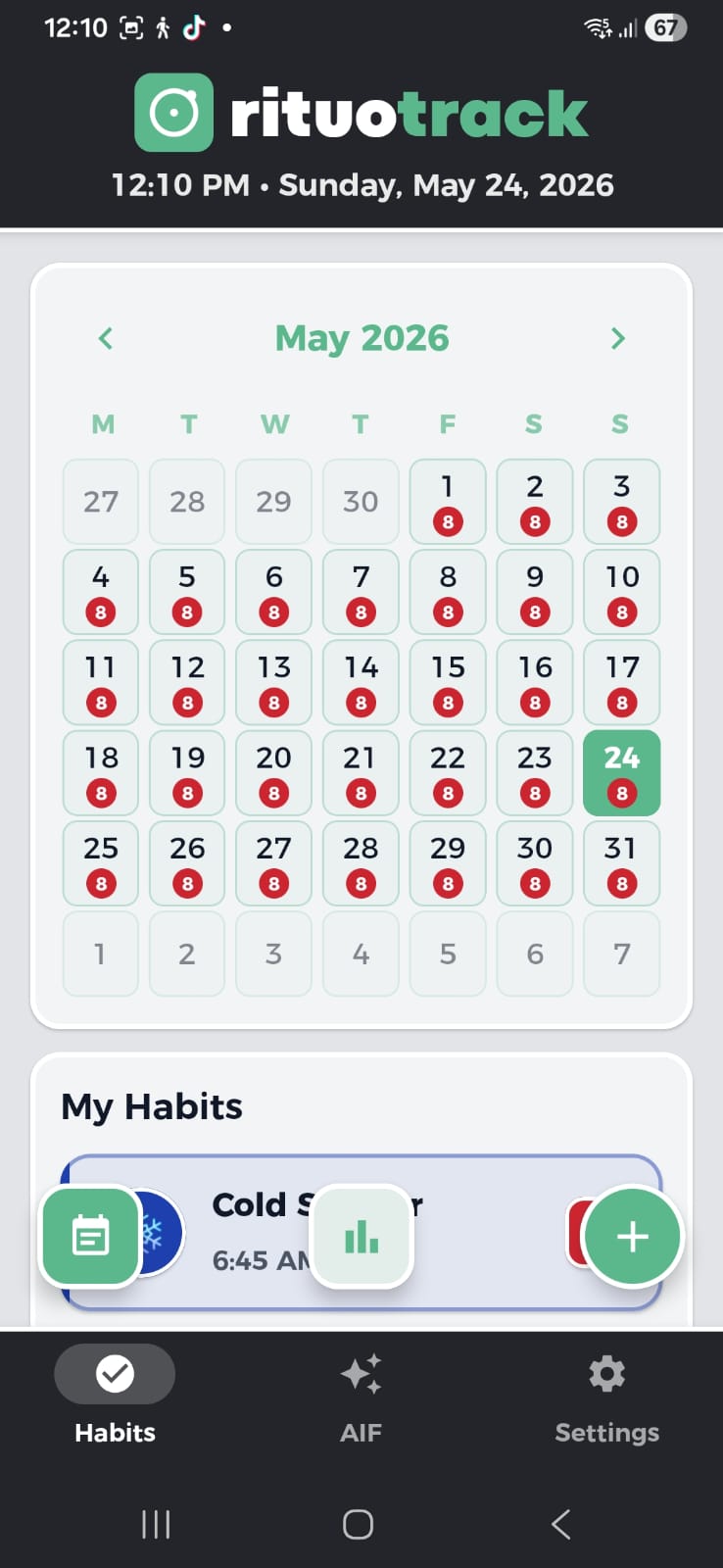
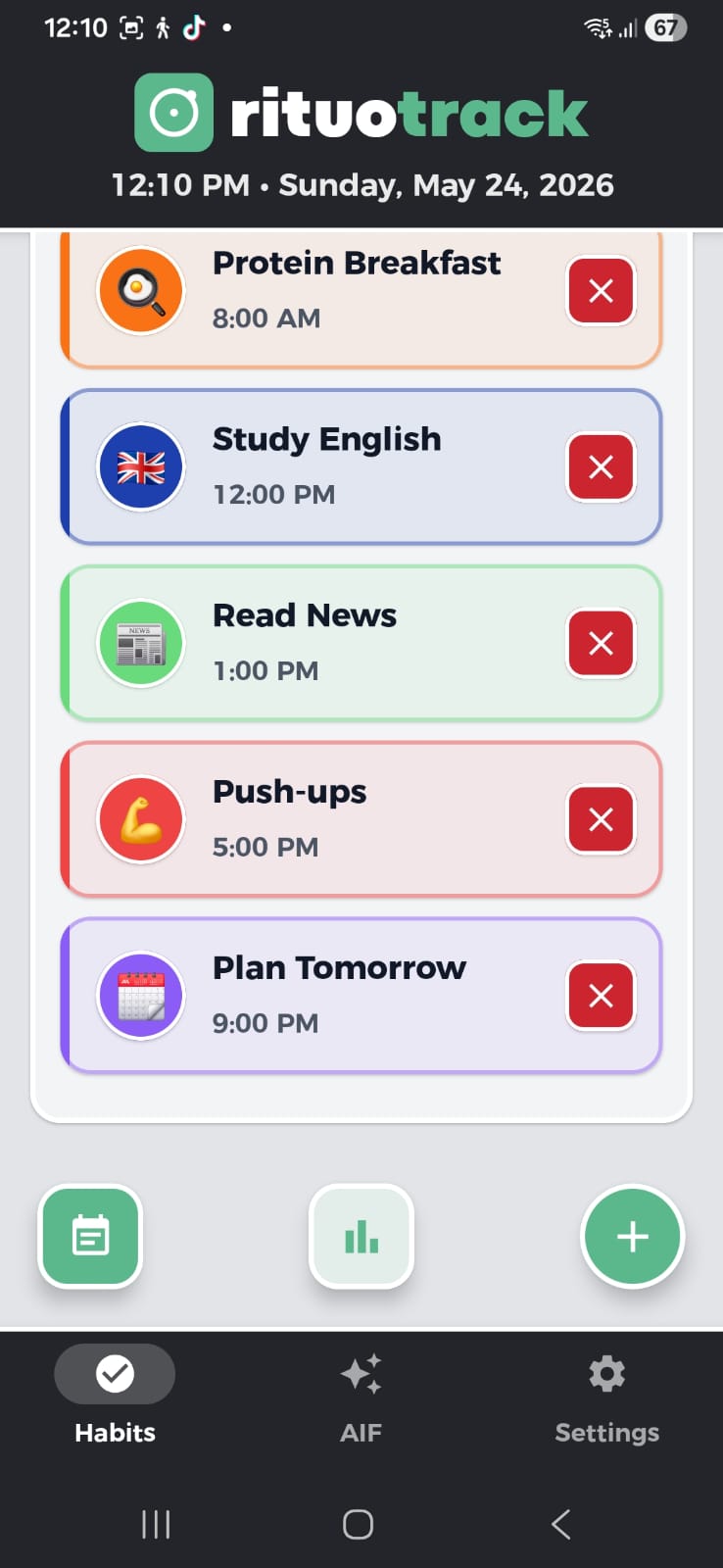
The heart of RITUO TRACK. You tap the "+" and create each habit your way: give it a name, choose an emoji and a colour (from the built-in palette or your own hex code) and set how often it repeats — daily, weekly choosing the day, monthly choosing the day of the month, yearly with day and month, weekdays, or just once on a specific date. Add a start and end time, start and end dates for time-limited habits, an initial note and any notifications you like. Then, in the day list, you mark it done with one tap and untick it with another.
Where: The “+” at the top right, on the Habits tab
Where: The “+” at the top right, on the Habits tab
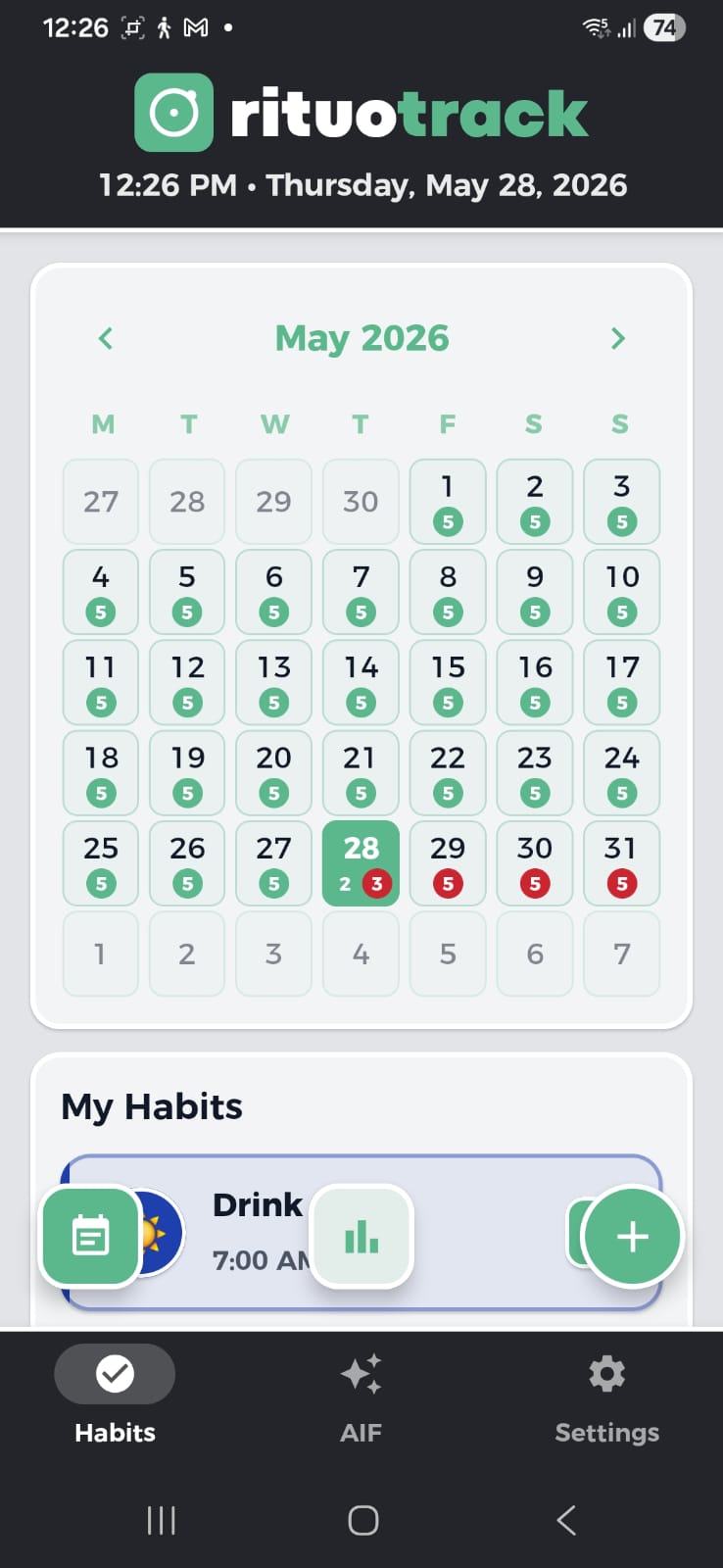
The monthly view of your routine, the place to look back and understand your patterns. Each day shows a small number with how many habits you had, and days you fully completed are highlighted. Swipe left or right (or use the arrows at the top) to move between months. Tap any day and the detail opens: which habits were due, which you marked and at what time, and that day's notes — and from there you can also mark retroactively something you forgot. Anything logged after its real date shows a red "R" badge to tell it apart.
Where: Habits tab, the calendar at the top
Where: Habits tab, the calendar at the top
STEP 03
AIF — your AI assistant
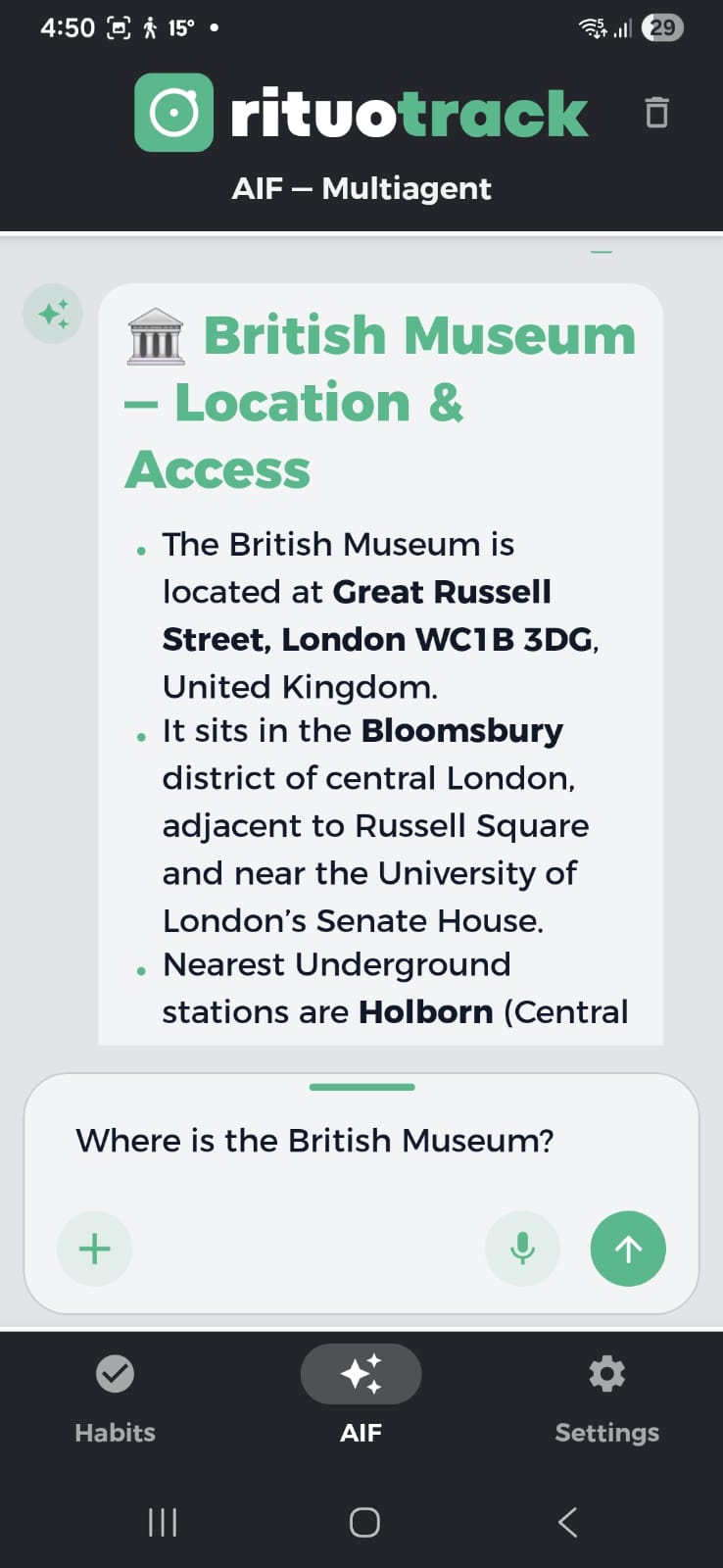
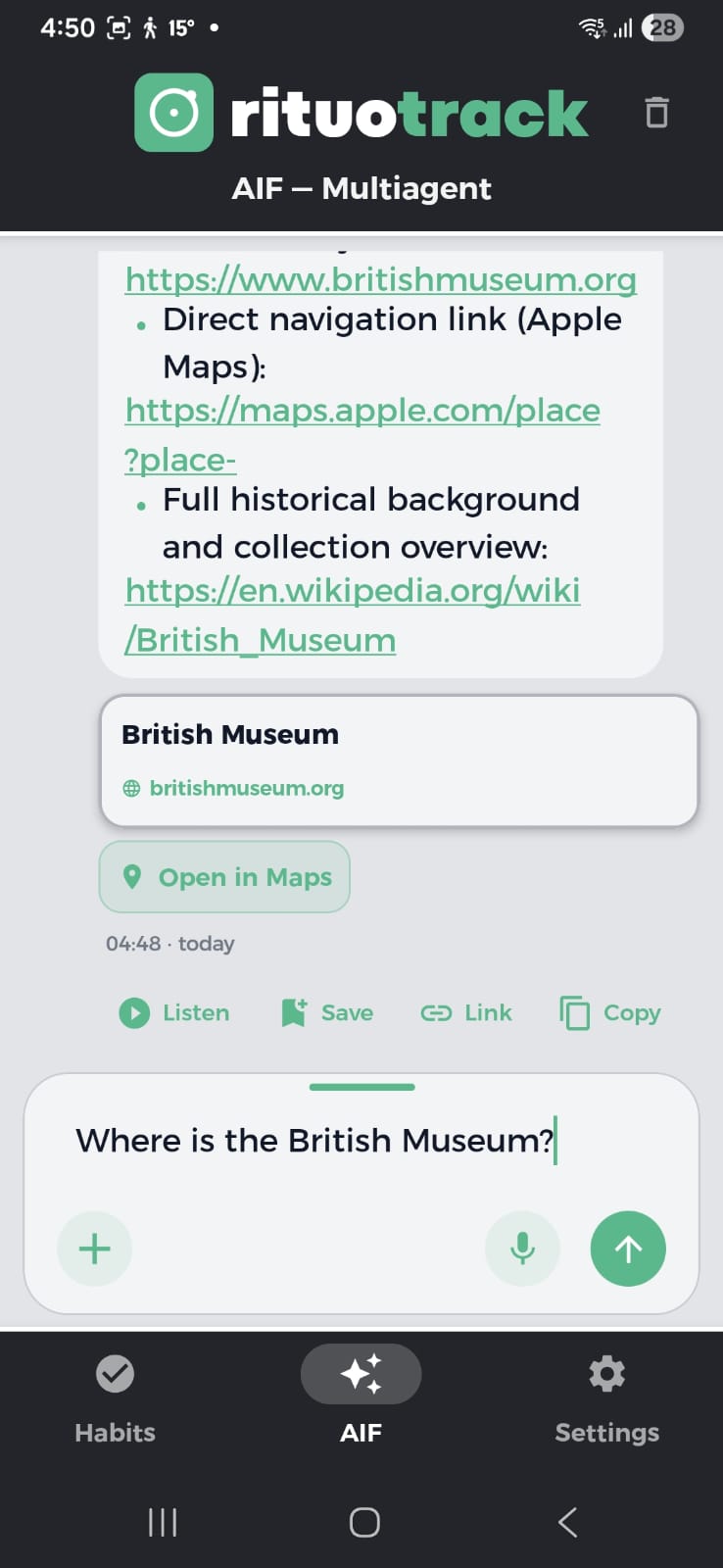
RITUO TRACK's AI assistant: a chat plugged into your data that knows your habits, what you completed, your notes and your context. Depending on how many AI keys you connect, it assembles a team of agents working in parallel: the Researchers search the web, the Advisors reason and question, and the Synthesizer writes the final, polished answer. With several keys it works in parallel; with a single one, that provider does it all. It has its own skills, tools and memory, and can create and edit habits, build documents and find real information for you. In the typing bar, next to the microphone, a token counter shows in green how many you have spent since you opened the app: tokens are the unit paid providers charge by, so you see the cost as it happens.
Where: The AIF tab, bottom center
Where: The AIF tab, bottom center
The agenda where everything you talked about with AIF is saved, day by day — handy to go back and read an old conversation. You open it from Settings › Cache by day: a calendar shows the days you had chats, newest to oldest, each with its message count. Tap a day and the bubbles open exactly as they appeared, read-only (you can't reply or edit from there), and even the images you sent are visible. From the cache you can bring that whole chat back or restore habits you had deleted.
Where: Settings › Cache by day
Where: Settings › Cache by day
The local folder where Rituo keeps what you want it to remember: your family and loved ones, your partner, studies, work, emotions, tastes, wishes, finances and health — all inside the phone, never uploaded anywhere. At the top you pick Rituo's identity with chips: 18 combinable traits (empathetic, technical, direct, didactic, motivating, calm, concise, patient…) that change the tone it speaks to you with. You also set the nickname it greets you by, and each memory keeps its date so you can edit or delete it anytime.
Where: Settings › AIF Memory
Where: Settings › AIF Memory
STEP 06
Location & weather
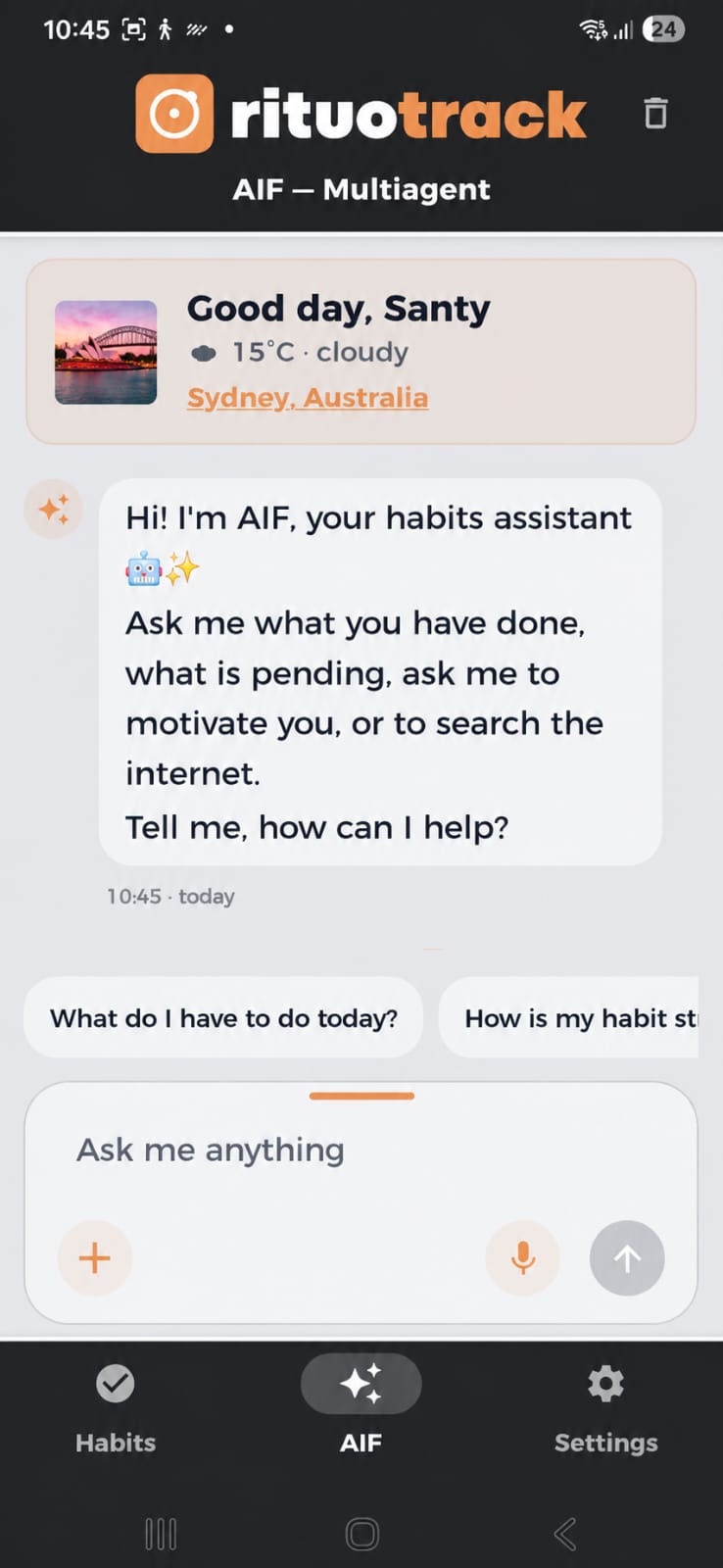
Above the AIF chat there's a greeting with your real weather and area, to give you context and suggest places near you. Location is only used while the app is in the foreground and never leaves to our own servers: it stays on your phone. It's what lets AIF greet you "good morning" with the current temperature and understand where you are when you ask. The greeting changes with the time of day and shows your city, so you can ask it for the weather or nearby places in a single sentence.
Where: Above the AIF chat
Where: Above the AIF chat
STEP 07
Device permissions
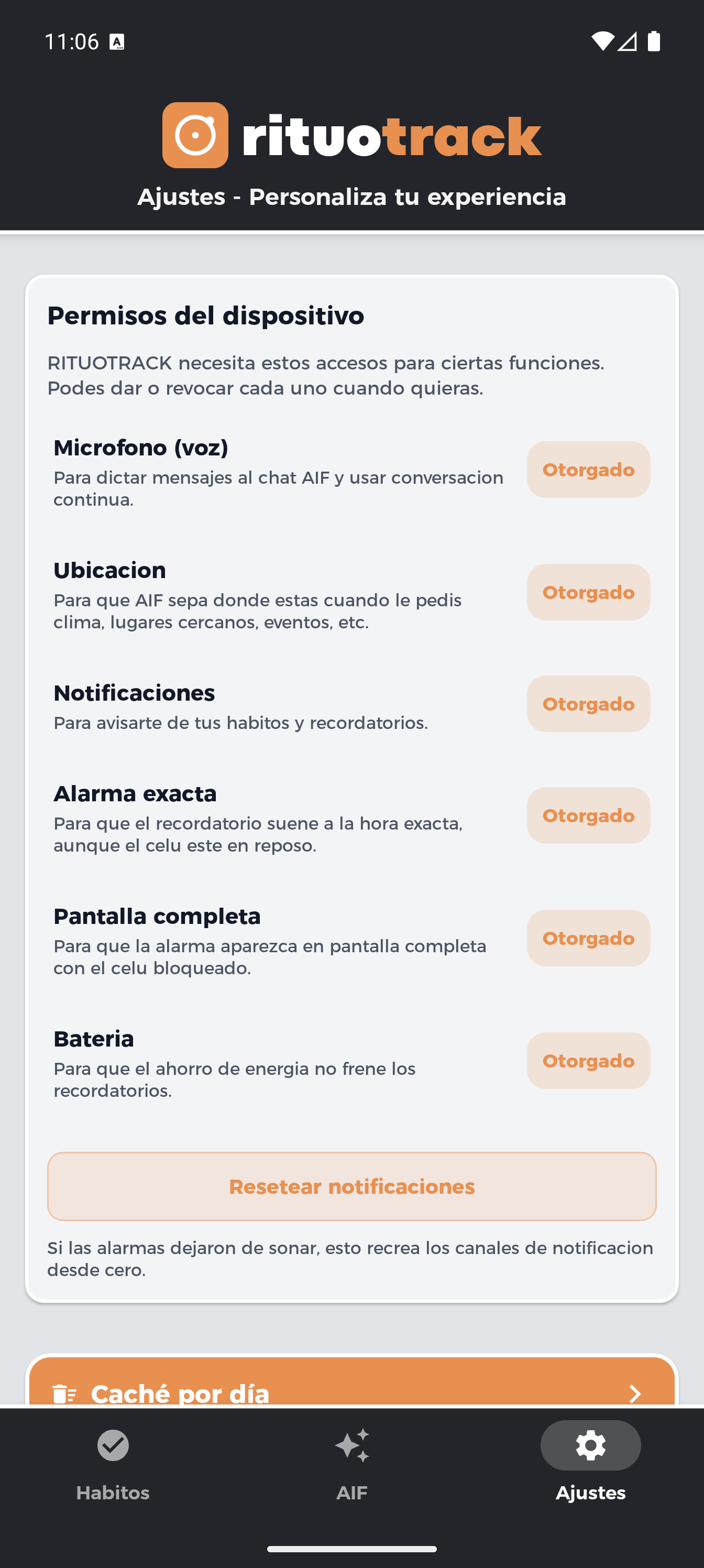
On a single screen you choose what permissions to grant the app, each with a clear, plain explanation of what it's for: microphone (talk instead of type), location (weather and nearby places), notifications (your habit alerts), exact alarm (so it rings on time even when the phone is idle), full screen (so the alarm shows even when locked) and battery (so power saving doesn't stop reminders). It includes a button to reset the notification channels if they ever stop ringing.
Where: Settings › Device permissions
Where: Settings › Device permissions
RITUO TRACK has speech-to-text (dictation) and text-to-speech (reading) built into the chat, so you use the app without looking at the screen — driving, cooking or working out. You press the mic, speak, and what you say is transcribed into the text field (it uses Android's engine, so it handles Spanish and Latin American accents well), and you can edit before sending. AIF reads the answers out loud, with three speeds and a continuous conversation mode.
Where: The mic in the AIF chat
Where: The mic in the AIF chat
A notepad per day and per habit to capture what happened, with text and photos. You open it from the habit detail or by tapping a date on the calendar. It works as a progress journal pinned to each habit: how you felt, what you achieved, a photo of the moment. Each habit keeps several notes, tied to their day. Over time you build a visual journal for each habit that you can reread whenever you want from the calendar.
Where: In the habit detail or the calendar
Where: In the habit detail or the calendar
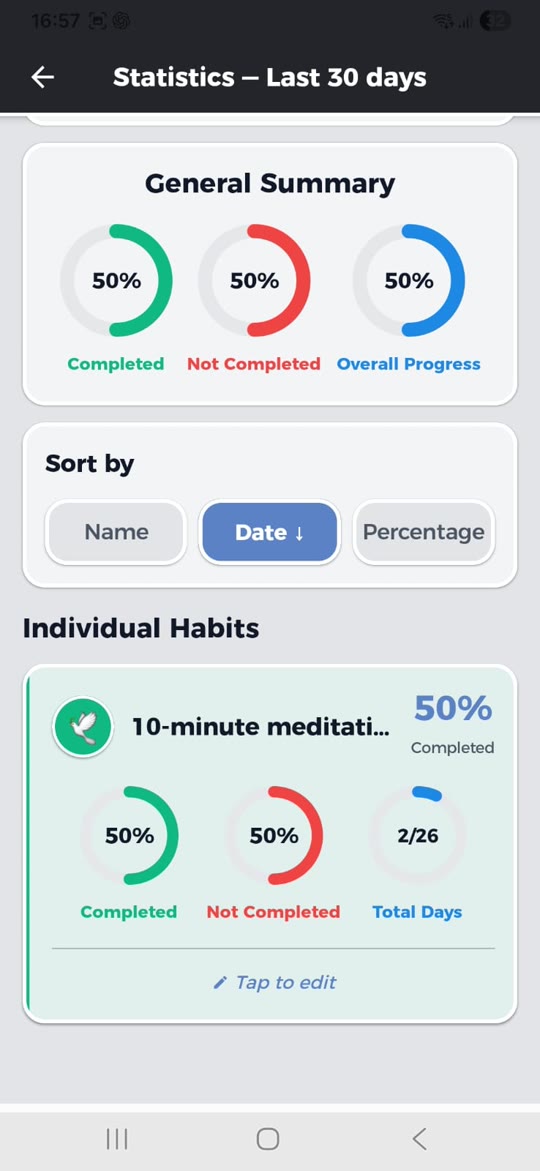
Your performance in numbers, with Today, Weekly and Monthly periods. At the top you see a general summary with the completed percentage, the not-completed and overall progress; below, the habit-by-habit breakdown with current and longest streak, completion rate and total days. You can sort the list by name, date or percentage to quickly spot where you're slipping or strong. You open it with the bars icon, at the bottom of the Habits tab.
Where: The bars icon, bottom of Habits
Where: The bars icon, bottom of Habits
STEP 11
Notifications & alarms
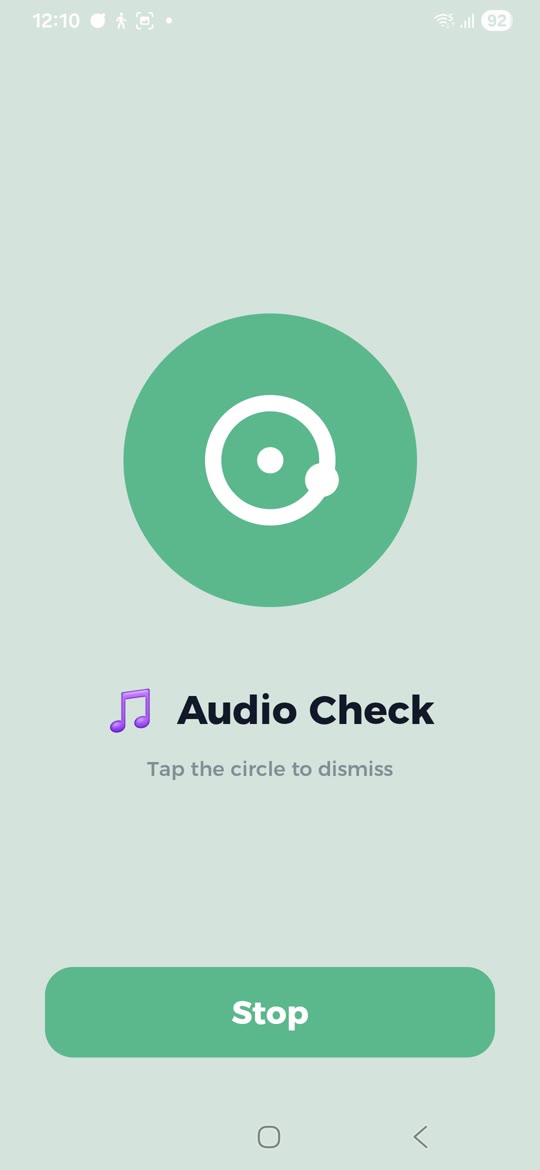
Each habit can alert you in five ways: on time, 5 or 10 minutes before, or 5 or 10 minutes after, plus a custom offset. You choose whether the alarm rings, vibrates, does both or stays silent. When it's sound or vibration, it fires a full-screen alarm, clock style, that rings and vibrates in a loop until you stop it, and shows even when the phone is locked or the screen is off. It's all set when creating or editing the habit.
Where: When creating or editing a habit
Where: When creating or editing a habit
You ask AIF in plain words and it does it for you: create one habit or several at once, mark done across a date range (past or future), copy whole days from one date to another, undo the last action, recover something deleted, save notes, hand you files in Word, Excel, PDF and TXT, and gives you the location of any place you ask. It's not a mechanical bot: it reasons each request and executes it — and for habit actions it takes a fast path to answer in a few seconds, while knowledge questions go through the full team of agents.
Where: Type to the AIF chat
Where: Type to the AIF chat
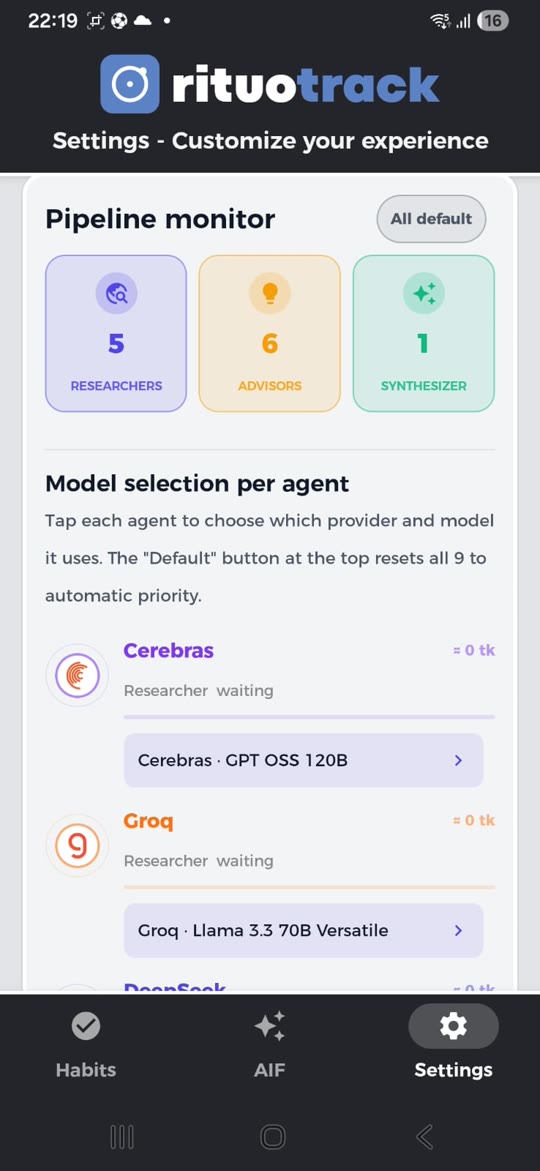
The screen where you watch your team of agents work live. At the top, three cards show your team —Researchers, Advisors and a Synthesizer—; below, each connected provider appears with the role it plays, its status (ready or waiting) and the tokens it uses, plus the current turn's total. From here you also tap each agent to choose which provider and model it uses, or press “All default” to return to automatic priority. So you see and fine-tune, in real time, how the work is shared out.
Where: Settings › Pipeline monitor
Where: Settings › Pipeline monitor
RITUO TRACK has four colour modes —Light, Grey, Dark grey and Dark— and nine palettes (Blue, Green, Purple, Pink, Red, Mint and more), giving 36 different combinations so the app looks exactly how you want. You change it from Settings by picking the mode and palette, or just by asking the chat in one sentence ("set it to dark purple"). The change applies instantly across the whole app —calendar, chat and settings— with no restart.
Where: Settings › Color mode
Where: Settings › Color mode
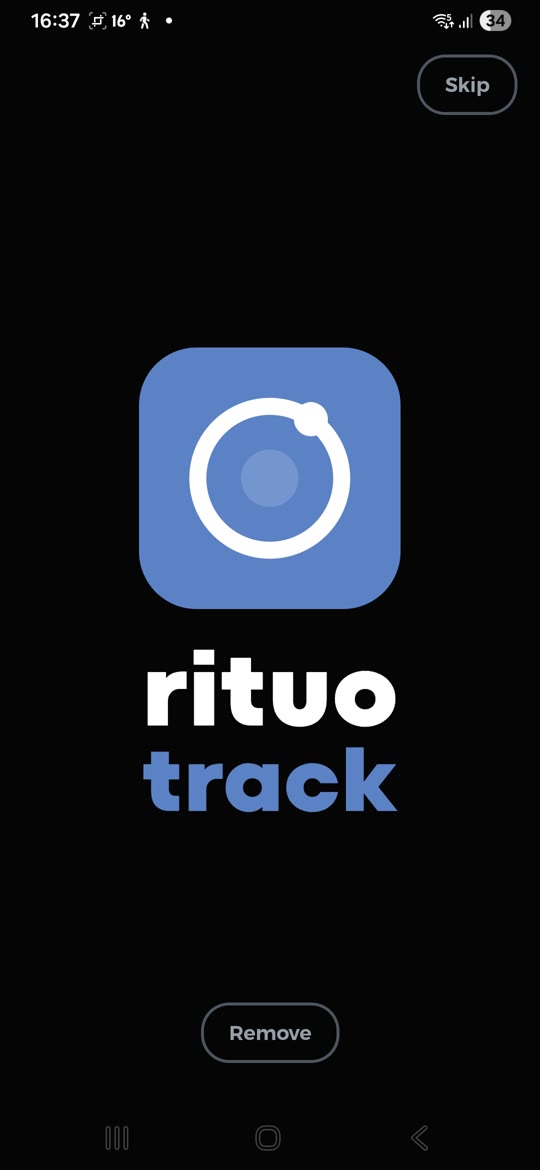
When you open the app a welcome animation greets you with the logo in motion. If you'd rather go straight in, you remove it from Settings with one tap, and put it back whenever you want. It's a brand-identity touch you turn on or off to taste. It's the same isologo animation —the dot orbiting the circle— and if you remove it, the app opens straight to your habits. You'll find it in Settings › Intro, to watch it again or remove it whenever you want.
Where: Settings › Intro
Where: Settings › Intro
The app learns your preferences and even new capabilities in an isolated, safe space (with validation and a sandbox), without touching your real data. It runs on its own, in the background, and everything it learns is reversible: if you don't like something, you reset it by asking the chat. It's the part that makes Rituo adapt to you over time. All that learning lives inside the phone, without leaving to any server.
Where: Runs on its own; reset it from the chat
Where: Runs on its own; reset it from the chat
STEP 17
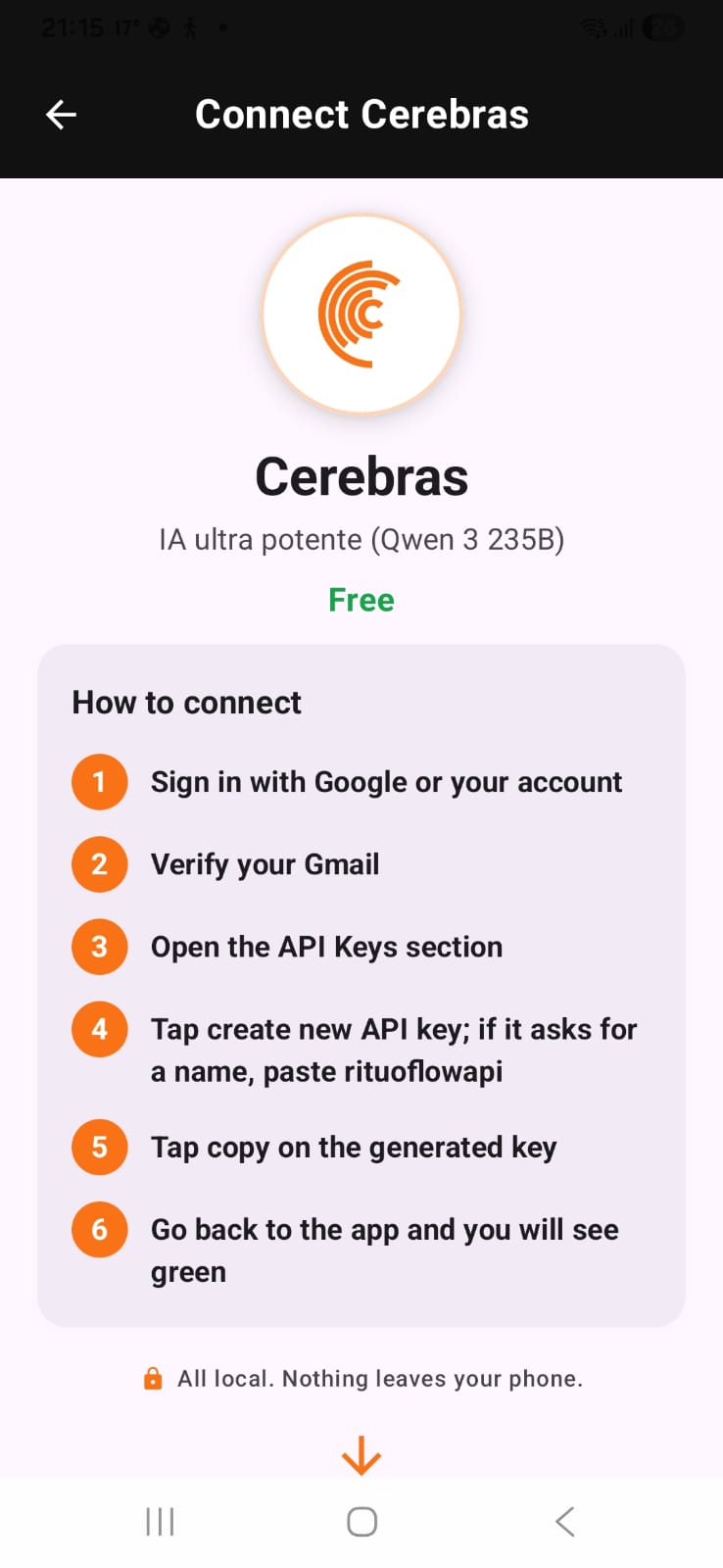
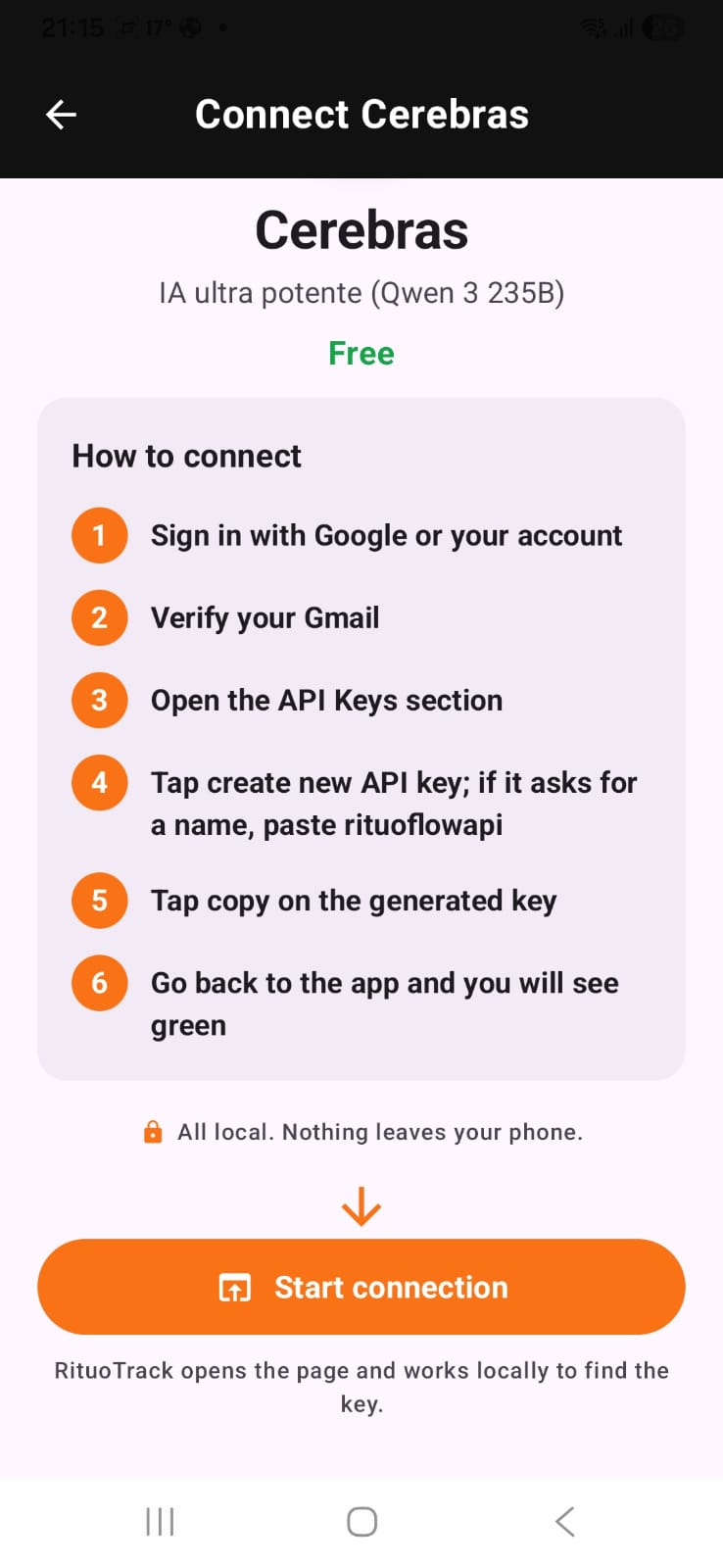
Connect your AI (API key)
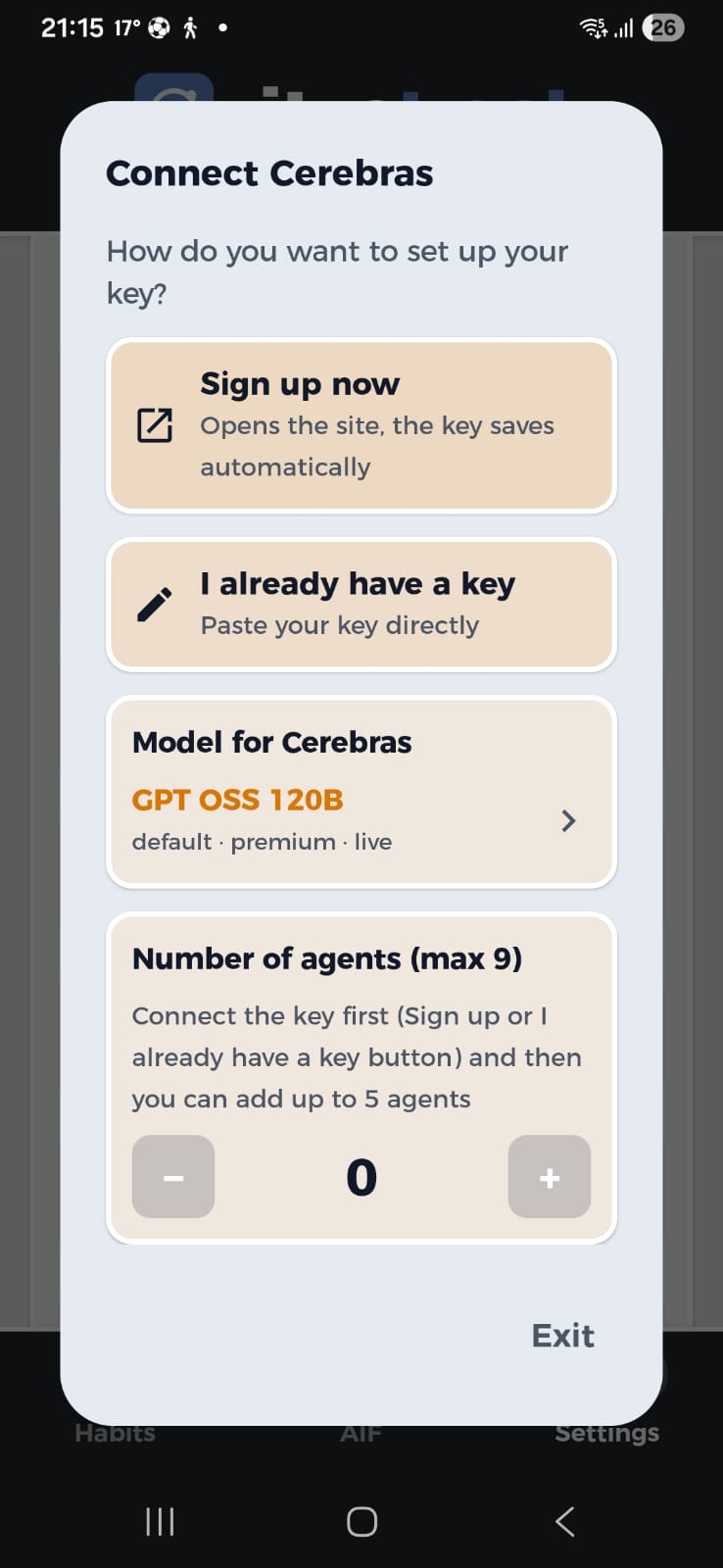
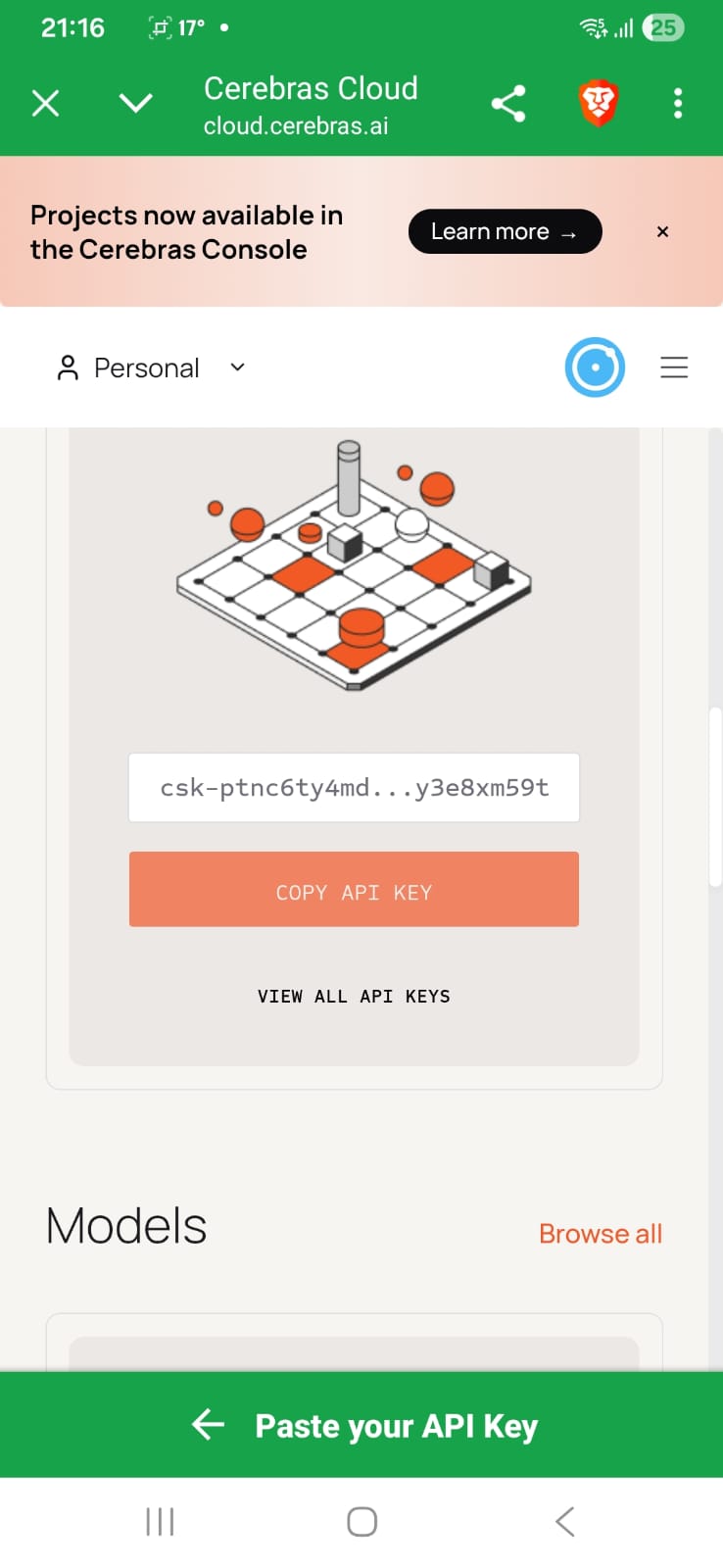
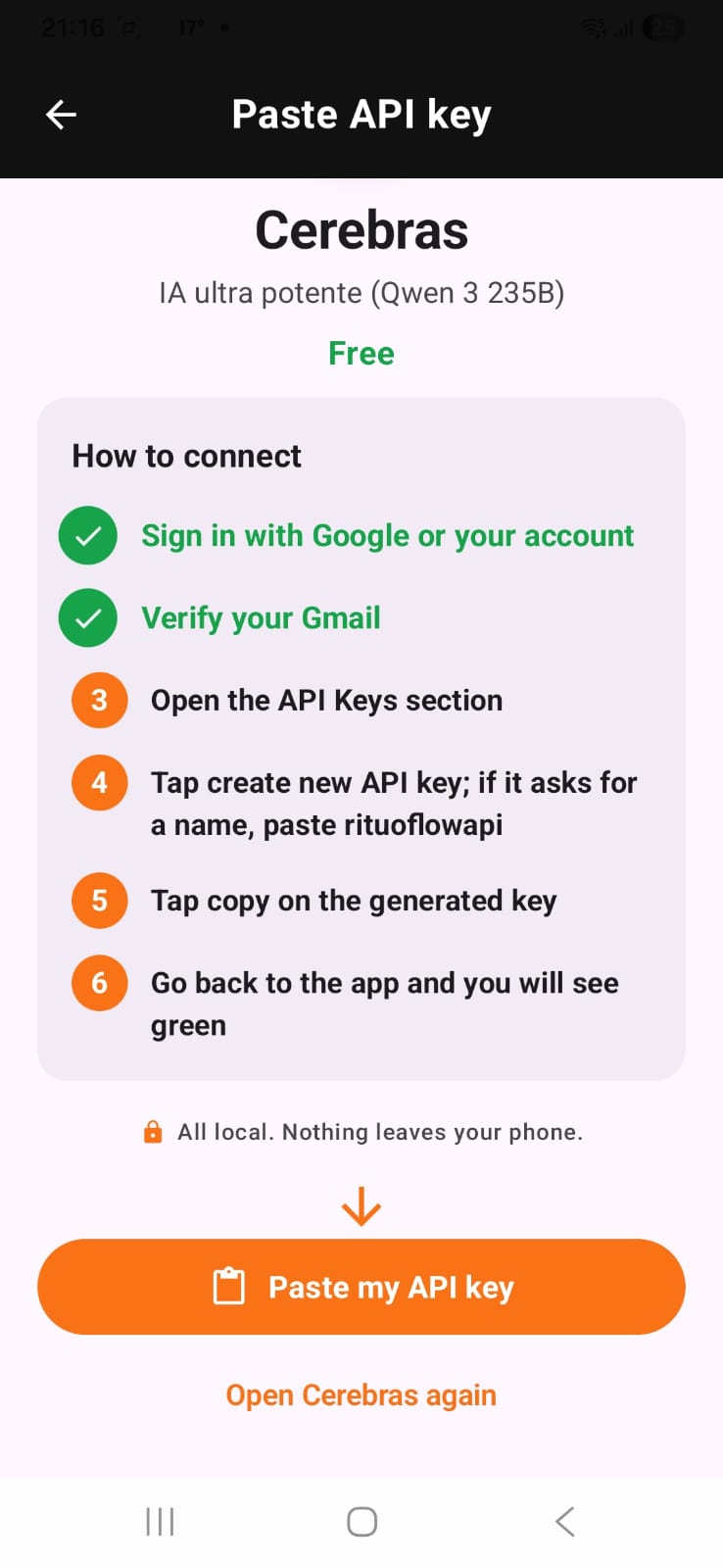
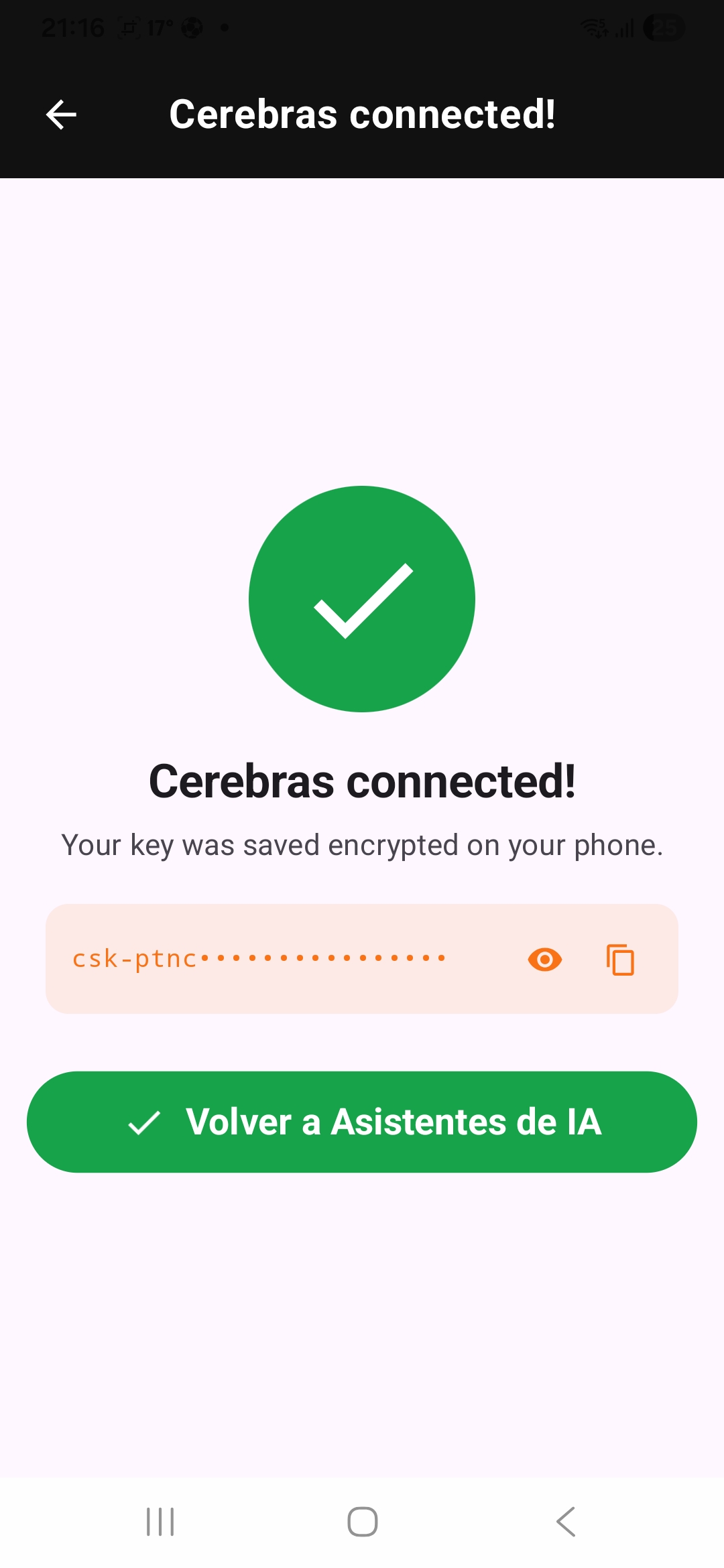
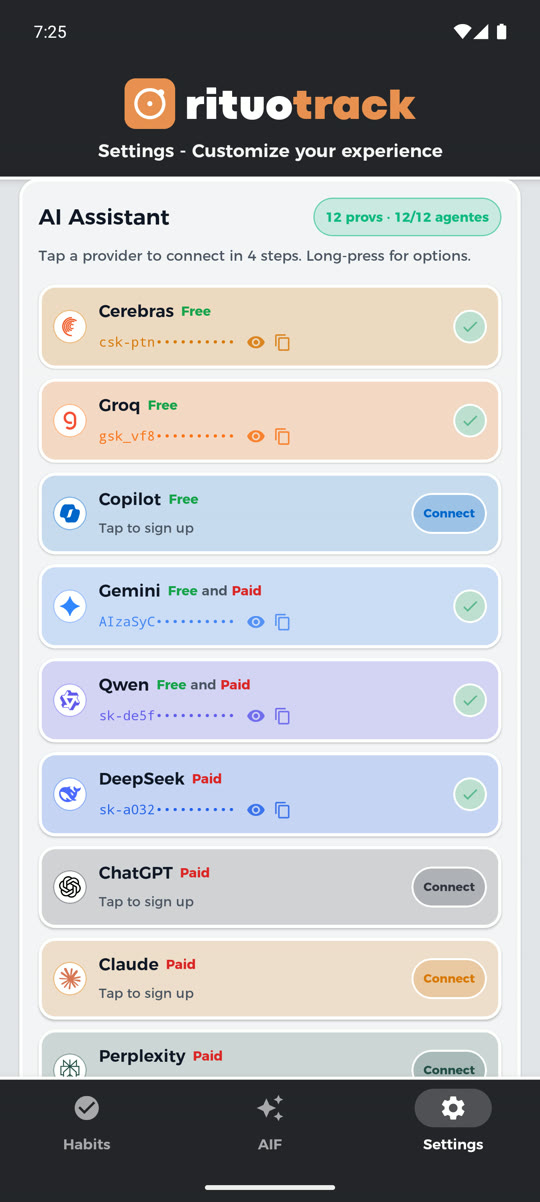
For AIF to work, you connect your own API key from any of the 10 providers with a free plan. It's very simple: you tap a provider, choose Sign up (it opens their site and saves the key for you) or I already have a key (paste it directly), set the model and the number of agents, and you're done. Your key stays encrypted inside the phone and we never see it. You can connect several providers and even several accounts of the same one, so the team of agents works in parallel.
Where: Settings › AI assistant › tap a provider
Where: Settings › AI assistant › tap a provider
STEP 18
The pipeline: your team of agents
When you connect several keys, AIF assembles a team of agents that works in parallel, each with the provider you choose: the Researchers gather data, the Advisors reason and challenge, and the Synthesizer writes the final answer. You watch it move live in the Pipeline Monitor, with each provider's role and status. The system is agnostic: you put any AI in any role and your preference always wins. With a single key, that provider does all the work.
Where: Settings › Pipeline Monitor
Where: Settings › Pipeline Monitor
STEP 19
Floating assistant
It's the RITUO TRACK icon floating above the screen: it stays on top of the app and over any other application too, so you can talk to it without going back to the chat. You release it with the button next to the "+" in the AIF tab, and you close it with that same button. You drag it wherever suits you and it stays there, it pulses while AIF is speaking so you know it's answering even if you're in another app, and tapping it takes you back to the chat right where you left it. That's what it's for: you're looking at a recipe or a video, something occurs to you, you say it right there, and when you come back the answer is waiting. It needs the Display over other apps permission, and it's optional: if you don't want it you close it and the app works just the same.
Where: The AIF tab, the button next to the “+”
Where: The AIF tab, the button next to the “+”